
Variations
Show each variable product's variations as rows of their own, and edit their prices, stock and other fields like any product.
Note
This is part of Gridline Pro.
Gridline lists products. With Gridline Pro, variable products can bring their variations along, each on a row of its own.
Show variations
Tick Show variations next to the filters. Each variable product is then followed by its variations, slightly indented, named by their attributes (for example "Colour: Sage").
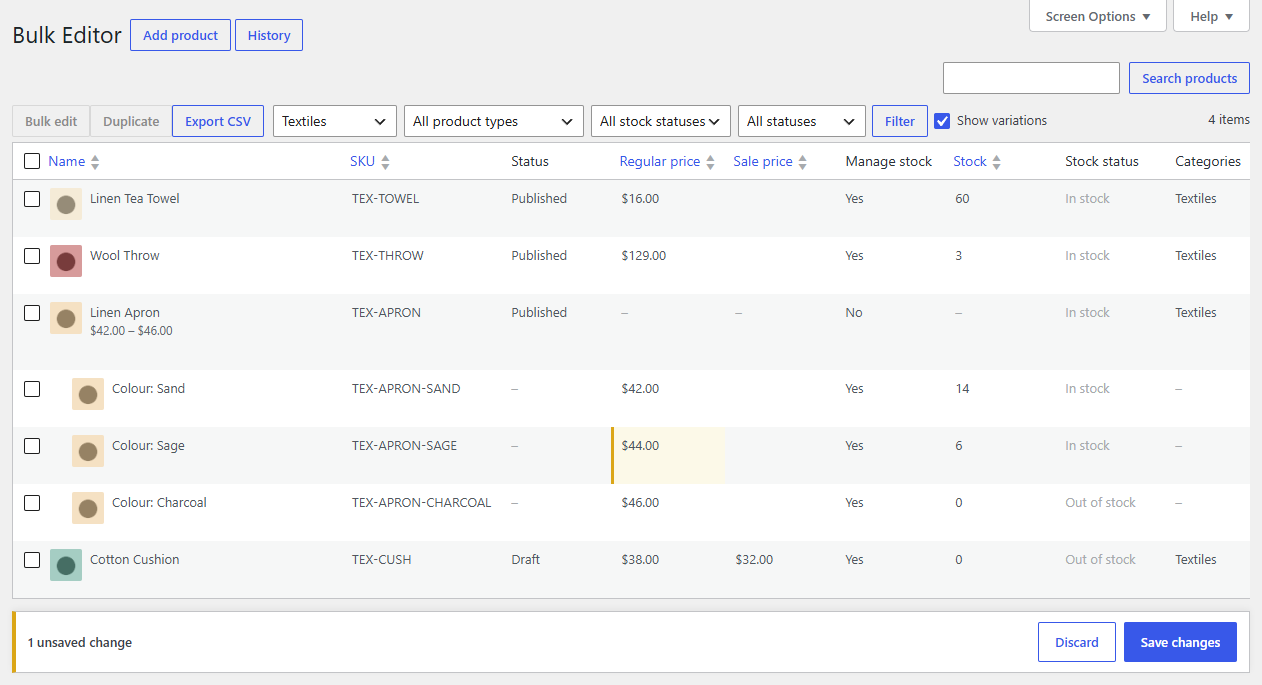
The page still counts products, so 50 products per page shows 50 products and all of their variations.
Editing variations
A variation's cells work like any product's: click, type, and save. These fields belong to the variation itself:
- SKU, regular price, sale price, sale dates,
- manage stock, stock and stock status, backorders,
- weight, shipping class and tax class (with "Same as product" options),
- description and image.
These belong to the product, so they're greyed out on a variation's row: name, status, categories, tags, featured, catalog visibility, short description, gallery and attributes. A variation's own attribute values (what makes it "Sage" or "Large") are changed on the product screen.
When you save a variation, its product's price range and stock are updated straight away, and shown under the product's name.
Bulk changes on variations
Tick variations' rows as well as products' and use Bulk edit as usual. For example, to raise every size of a shirt by $2: show variations, search for the shirt, tick all, then Regular price → Increase by → 2. The variable product itself is skipped (it has no price of its own) and its variations change.
Search
Searching for a variation's SKU finds its product. Tick Show variations to see the variation itself.
Export
With Show variations ticked, Export CSV includes the variations too, each with its parent product's ID.