
Bulk changes
Change one field for a whole selection at once: set values, raise or lower prices by an amount or a percentage, sale prices from the regular price, rounding, categories and tags, with a preview before saving.
Note
This is part of Gridline Pro.
When the same change applies to many products, there's no need to edit each cell. Select the products, describe the change once, and Gridline Pro works out every new value and shows them in the grid before anything is saved.
Select products
Each row has a checkbox at its start:
- Tick the products (and, with Show variations, variations) to change.
- The box in the header ticks every row on the page.
- Use the search and filters first to bring the right products together, for example one category, or everything out of stock.
The Bulk edit button above the grid shows how many rows are selected.
Describe the change
Click Bulk edit. In the window that opens:
- Field: the column to change, grouped as in Screen Options. Hidden columns can be changed too.
- Change: what to do (the choices depend on the field, see below).
- Value: the amount, percentage, text or choice.
- Rounding (prices only, when raising or lowering): none, to .99, or to whole numbers.
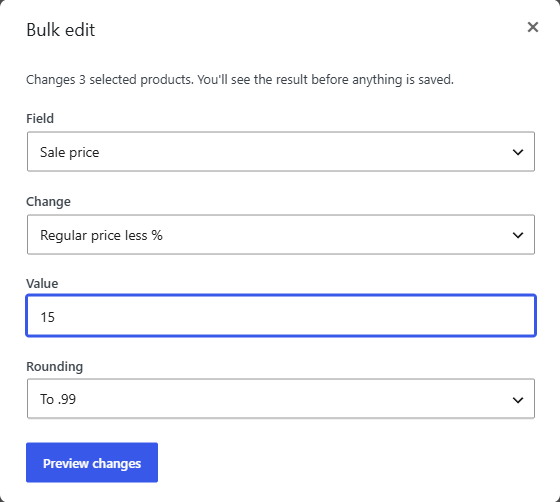
Click Preview changes.
Check, then save
The new values appear in the grid as unsaved changes, highlighted in yellow, exactly like cells you edited by hand. A notice says how many cells changed, and how many products were left alone and why: the field doesn't apply (a variable product has no price of its own), or there was nothing to change.
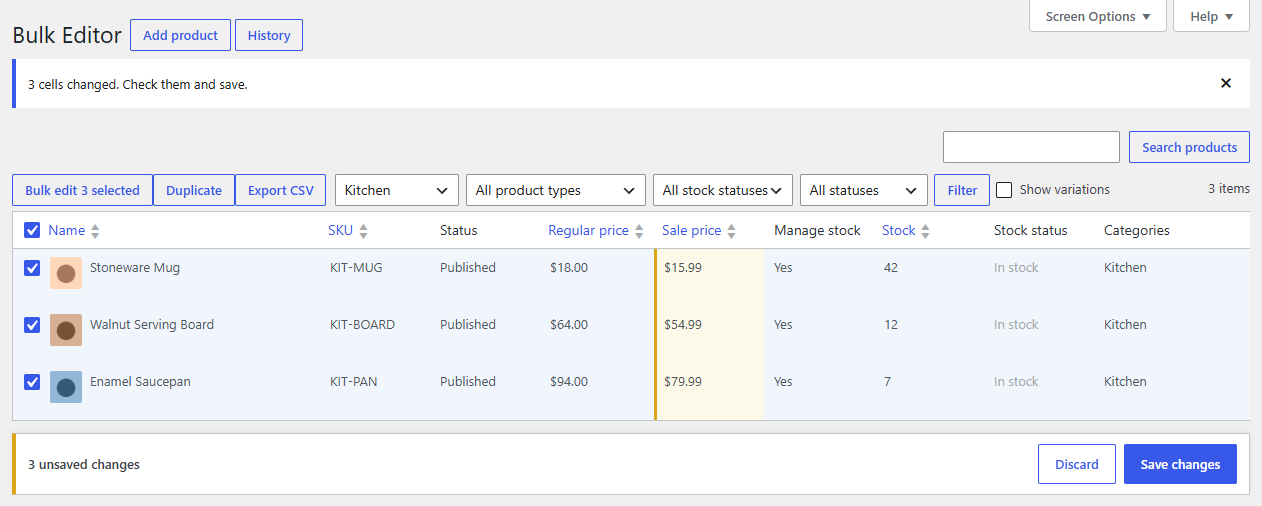
Look them over. Change any cell by hand if one needs to be different, run another bulk change on top, or click Discard to drop it all. When it's right, click Save changes. Every product is checked and saved through WooCommerce, as with any edit; see Saving changes. The save can be undone from History.
What each field can do
| Field type | Changes |
|---|---|
| Prices (regular, sale) | Set to, Increase by, Decrease by, Increase by %, Decrease by %, Clear; the sale price also has Regular price less % |
| Numbers (stock, weight) | Set to, Increase by, Decrease by, Clear |
| Text (name, SKU, descriptions) | Set to, Add before, Add after, Clear |
| Dates (sale from, sale until) | Set to, Clear |
| Choices (status, stock status, tax class, …) and Yes/No | Set to |
| Categories, tags, attributes | Add, Remove, Set to (replaces the list) |
| Image | Set to, Clear |
| Gallery | Add, Remove, Set to |
Other plugins' columns get the changes that fit their type.
Examples
A 15% sale on a category. Filter to the category, tick all, then: Field Sale price, Change Regular price less %, Value 15, Rounding To .99. A product priced $40.00 gets a sale price of $33.99.
A price rise. Field Regular price, Change Increase by %, Value 5, Rounding To whole numbers.
End a sale. Field Sale price, Change Clear.
Add a category without losing the others. Field Categories, Change Add, tick the category. Set to would replace each product's categories instead.
Restock. Field Stock, Change Increase by, Value 24. Products that don't manage stock are left alone.
Tip
SKUs must stay unique, so Set to on the SKU of several products will fail on all but one when you save. Add before or Add after keeps them unique.
Rounding
Rounding applies to the result of a price change:
- To .99: the whole number below, plus .99. 13.75 becomes 13.99; 14.00 becomes 14.99.
- To whole numbers: the nearest whole number. 13.49 becomes 13.00; 13.50 becomes 14.00.
Prices never go below zero.