Columns and Screen Options
Show only the columns you need and choose how many products a page shows, per user, with WordPress's Screen Options.
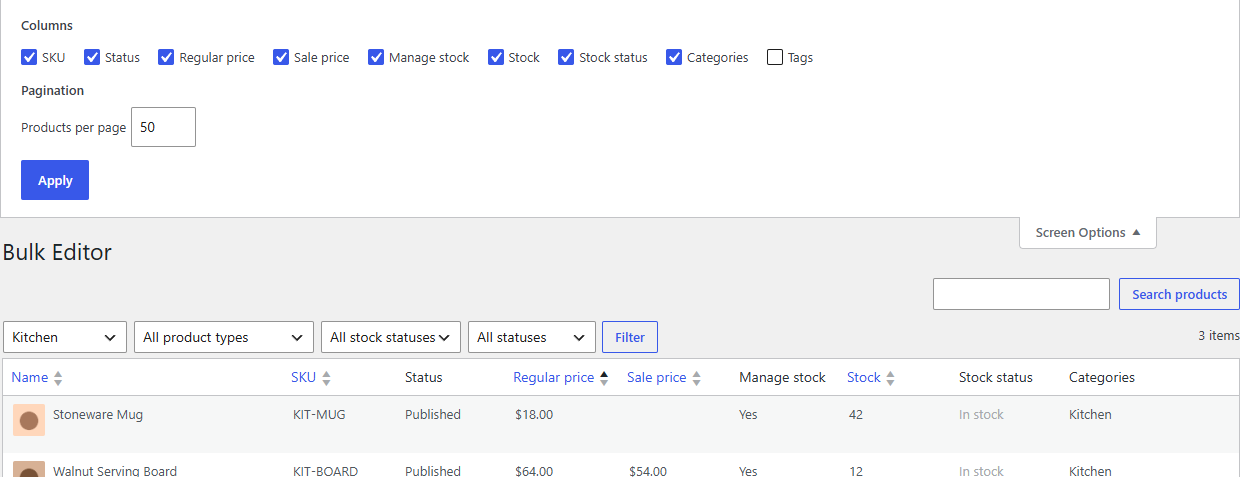
The Bulk Editor uses WordPress's own Screen Options, the tab at the top right of the screen, just like the Products and Orders lists.
Choose your columns
- Click Screen Options at the top right.
- Untick the columns you don't need, tick the ones you do. The grid changes straight away.
Name is always shown. Tags is hidden until you switch it on, and so are most columns that other plugins add, so the grid starts tidy.
Your choice is saved for you: it's still there next time, and other people keep their own.
Tip
Fewer columns means less scrolling sideways. For a price review, for example, show only SKU, Regular price, Sale price and Categories.
Products per page
In the same panel, set Products per page (10 to 200) and click Apply. The default is 50. Larger pages take a little longer to load, especially with many columns.
Hidden columns and the keyboard
Tab and Enter skip hidden columns, so moving through the grid only visits what you can see.
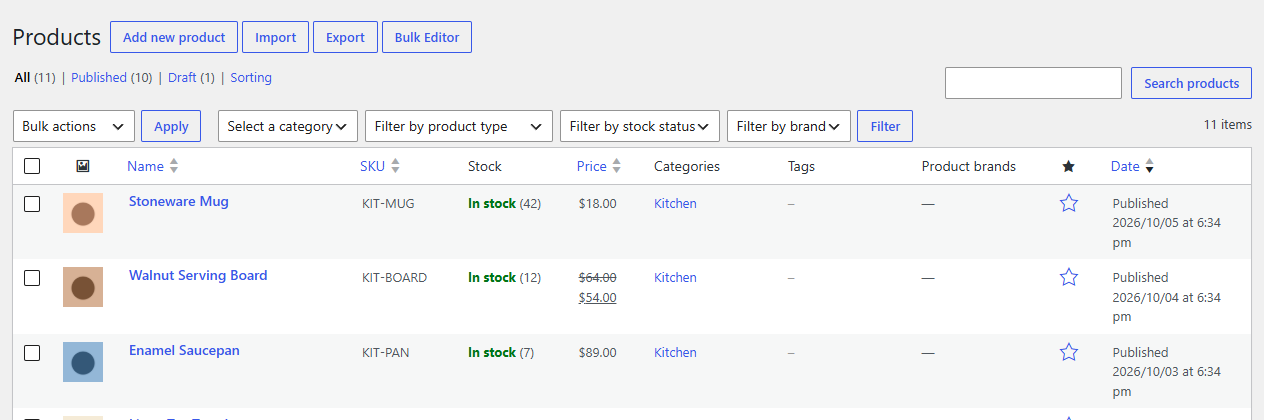
The Bulk Editor button on Products
On Products → All Products there's a Bulk Editor button next to Add new product, so you can jump between the two lists.