
More columns
The columns Gridline Pro adds: featured, catalog visibility, descriptions, image and gallery, sale dates, tax class, backorders, weight, shipping class and your attributes.
Note
This is part of Gridline Pro.
Gridline Pro adds a column for nearly every field on the product screen. They're hidden until you need them: open Screen Options and tick the ones you want.
The columns
| Column | Group | Notes |
|---|---|---|
| Featured | General | Yes or no |
| Catalog visibility | General | Shop and search results, Shop only, Search results only, or Hidden |
| Short description | Description and images | Edited in a text box over the cell |
| Description | Description and images | Edited in a text box over the cell |
| Image | Description and images | The product image, from the media library |
| Gallery | Description and images | Several images in order, from the media library |
| Sale from, Sale until | Pricing | Dates; the sale ends at the end of its last day |
| Tax class | Pricing | Your store's tax classes |
| Backorders | Inventory | Only with stock management |
| Weight | Shipping | In your store's weight unit; not for virtual products |
| Shipping class | Shipping | Not for virtual products |
| One per attribute | Attributes | Each global attribute under Products → Attributes |
Descriptions
Click a description cell and a larger text box opens over the grid, so rows keep their height. Enter starts a new line; Ctrl+Enter (or Cmd+Enter on a Mac), Tab or clicking elsewhere finishes. Esc cancels.
You can type HTML, such as <strong> or a link. It's cleaned as WordPress cleans post content, so scripts are removed. The cell shows the start of the text.
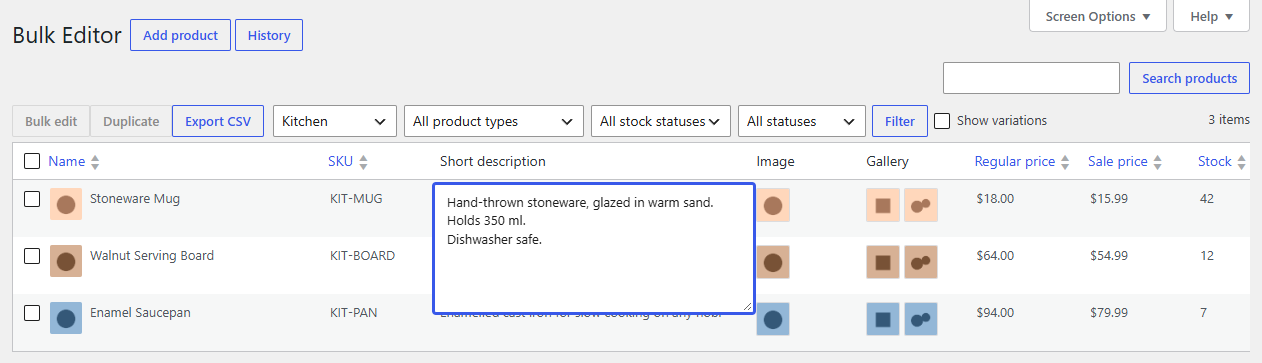
Images and the gallery
Click an image cell, then Choose image (or Choose images for the gallery) to open the media library, where you can also upload. For the gallery, pick several; they're kept in the order you pick them. Remove clears the cell. Only images can be chosen.
The cell shows thumbnails: up to four, with the count of any more.
Sale dates
Enter dates as on the product screen. "Sale from" starts at the beginning of its day and "Sale until" ends at the end of its day. A sale can't end before it starts: such a change stays on its cell with the reason.
Attributes
Each global attribute (Products → Attributes) gets a column listing its terms. Tick terms to add the attribute to a product, visible on its page; untick them all to remove it. An attribute a variable product uses for its variations can't be emptied here; change it on the product screen. Variations don't have attribute columns: their attribute values are what make them that variation.
Columns from other plugins
Extendiment's other plugins add their own columns too, such as Stockline Pro's stock messages and Stockpool's shared stock pools. Bulk changes, undo and export work on them like on any column.