
Editing cells
Edit any cell with the mouse or keyboard, and how each kind of field is edited.
Every white cell in the grid can be edited. Changed cells turn yellow and stay that way until you save them or discard them.
Start editing
- Click a cell, or
- move to it with Tab and press Enter or F2.
Moving around while you edit
| Key | What it does |
|---|---|
| Enter | Keeps the value and moves down to the same column of the next row |
| Tab | Keeps the value and moves to the next cell on the right |
| Shift+Tab | Keeps the value and moves to the previous cell on the left |
| Esc | Stops editing and puts the cell back as it was |
| Click elsewhere | Keeps the value |
Hidden columns and greyed-out cells are skipped, so Tab always lands on something you can edit.
Each kind of field
Text (name, SKU): type, then Enter or Tab. A product's name can't be empty; HTML is removed from it.
Prices (regular, sale): type a number such as 24.50 or 24,50, as your store writes prices. Leave the sale price empty to end a sale. Prices show in your store's currency format.
Numbers (stock): a whole number. Negative stock is allowed, as in WooCommerce.
Choices (status, stock status): a dropdown opens in the cell. Pick an option and the cell is done.
Yes or no (manage stock): a Yes/No dropdown.
Categories and tags: a list of checkboxes opens over the cell, with child categories shown as "Parent › Child". Tick and untick what you need, then click Done (or click anywhere else). Esc closes the list without changing anything.
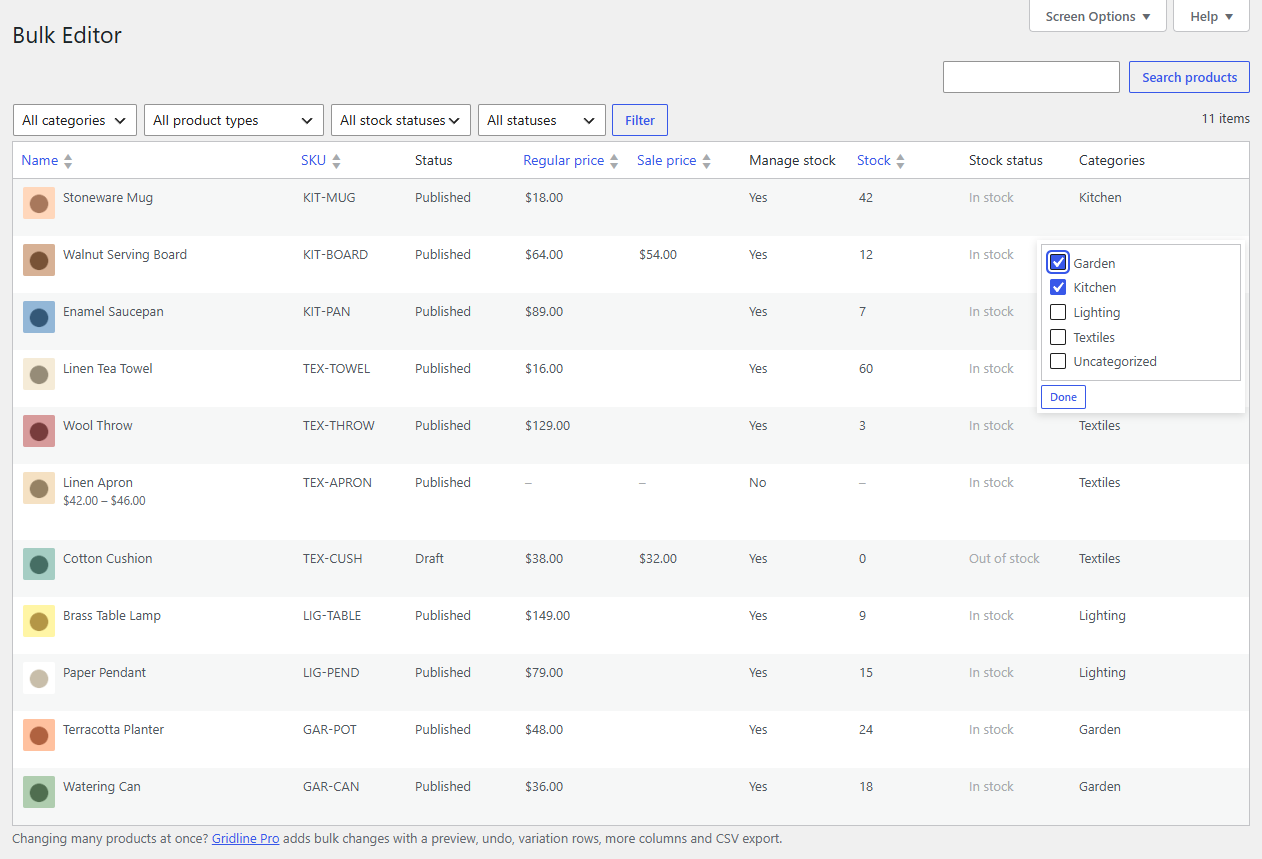
Some columns other plugins add are edited the same ways. Long texts open a larger text box over the cell (Enter adds a new line; Ctrl+Enter, or Cmd+Enter on a Mac, finishes), and image columns open your media library.
Greyed-out cells
A grey dash means the field doesn't apply to that product:
- A variable product has no price of its own: it comes from its variations, and its price range is shown under its name instead. Its stock status comes from its variations too (shown greyed out).
- Stock (the quantity) only applies when Manage stock is Yes.
- Stock status can only be changed when Manage stock is No; otherwise WooCommerce works it out from the quantity, and the cell shows it greyed out.
- Grouped and external products don't keep stock.
Change Manage stock to Yes and the Stock cell opens straight away, in the same save.
Changing your mind
- Esc while editing puts that cell back.
- Typing the original value back into a cell un-yellows it: it's no longer a change.
- Discard in the bar at the bottom throws away every unsaved change.
Changing the page, the filters, the sorting or the search, or leaving the screen, asks before throwing away unsaved changes.