
The Bulk Editor
A tour of Products → Bulk Editor: the search box, filters, columns, the grid and the save bar.
Products → Bulk Editor shows your products as a grid, one row per product and one column per field. It's built from the same list table as WordPress's own Products screen, so most of it will look familiar.
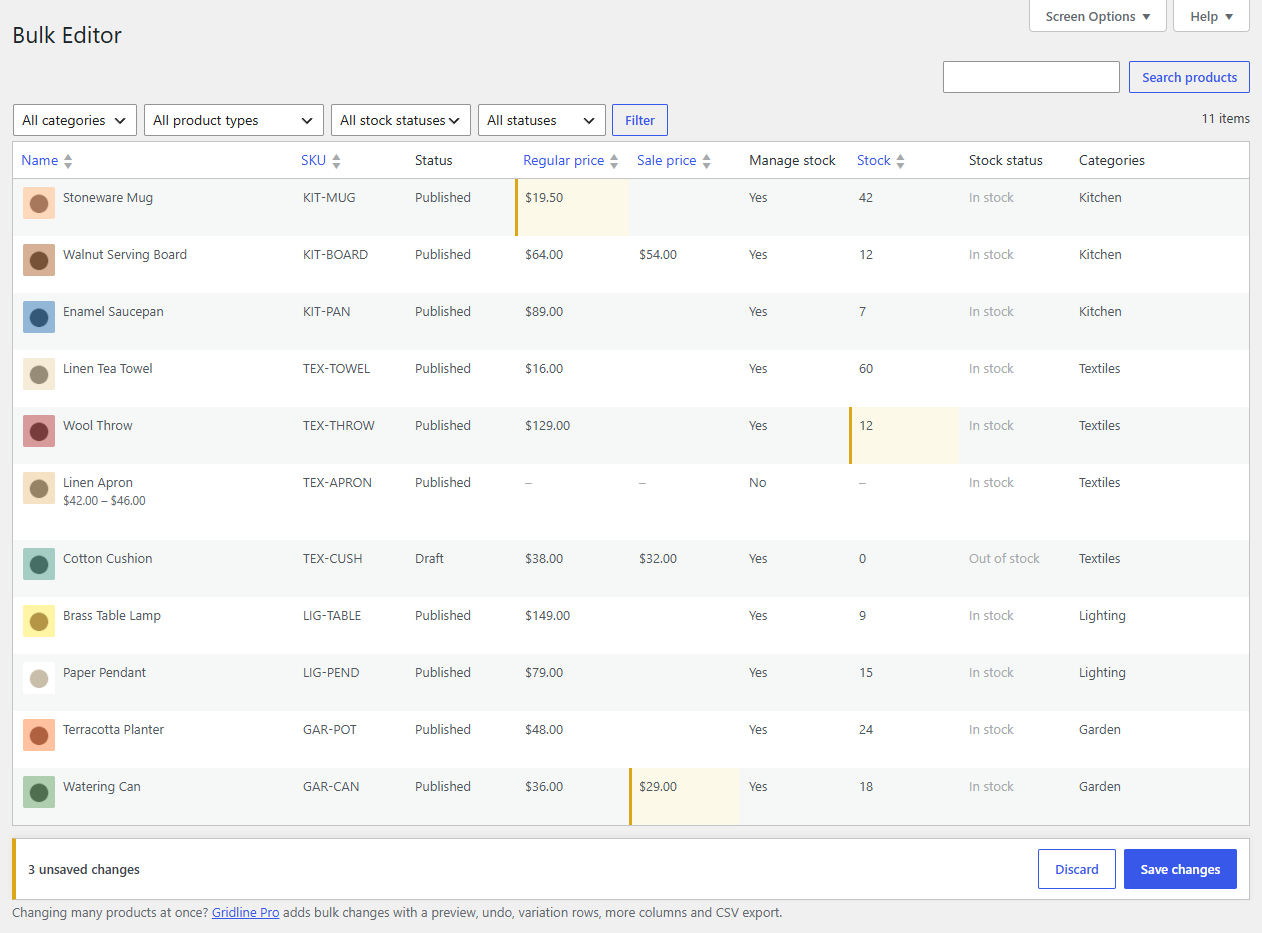
From top to bottom
- Search products (top right): searches names, descriptions and SKUs. See Finding products.
- Filters: category, product type, stock status and status, applied with the Filter button.
- Pagination (right): the number of products found and the pages. Choose how many products a page shows in Screen Options.
- The grid: the product's thumbnail and name stay on the left while you scroll sideways through the other columns. Hover a row to see its ID and an Edit link to the full product screen.
- The save bar appears at the bottom as soon as something has changed, with the number of unsaved changes, Discard and Save changes. It stays in view as you scroll.
The columns
| Column | Group | What it is |
|---|---|---|
| Name | General | The product name (always shown) |
| SKU | General | Must be unique across your store |
| Status | General | Published, Draft, Pending review or Private |
| Regular price | Pricing | |
| Sale price | Pricing | Must be lower than the regular price |
| Manage stock | Inventory | Yes to track the quantity |
| Stock | Inventory | The quantity, when stock is managed |
| Stock status | Inventory | In stock, Out of stock or On backorder, when stock isn't managed |
| Categories | Categories and tags | |
| Tags | Categories and tags | Hidden until you switch it on |
Plugins can add columns of their own, such as Stockline Pro's stock messages, Stockpool's shared stock pools, Preorderline's pre-order settings or Supplyline's suppliers and reorder points. They appear after these, with their own group, and work the same way.
Click a column's heading to sort by it, where it can be sorted. Hide the columns you don't need in Screen Options; see Columns and Screen Options.
How saving works
Your changes stay in the grid, highlighted, until you click Save changes. Then Gridline saves each changed product once, through WooCommerce, exactly as the product screen would. See Saving changes.