
Shop page swatches
Swatches under variable products on shop and category pages and in Product Collection blocks, with the variation's image, "+N more" and add to cart from the shop.
Note
This is part of Swatchline Pro.
With Swatchline Pro, variable products show their swatches in the shop too: on the shop, category and tag pages, in related products and WooCommerce's product shortcodes (classic themes), and in Product Collection blocks (block themes, and anywhere you place the block).
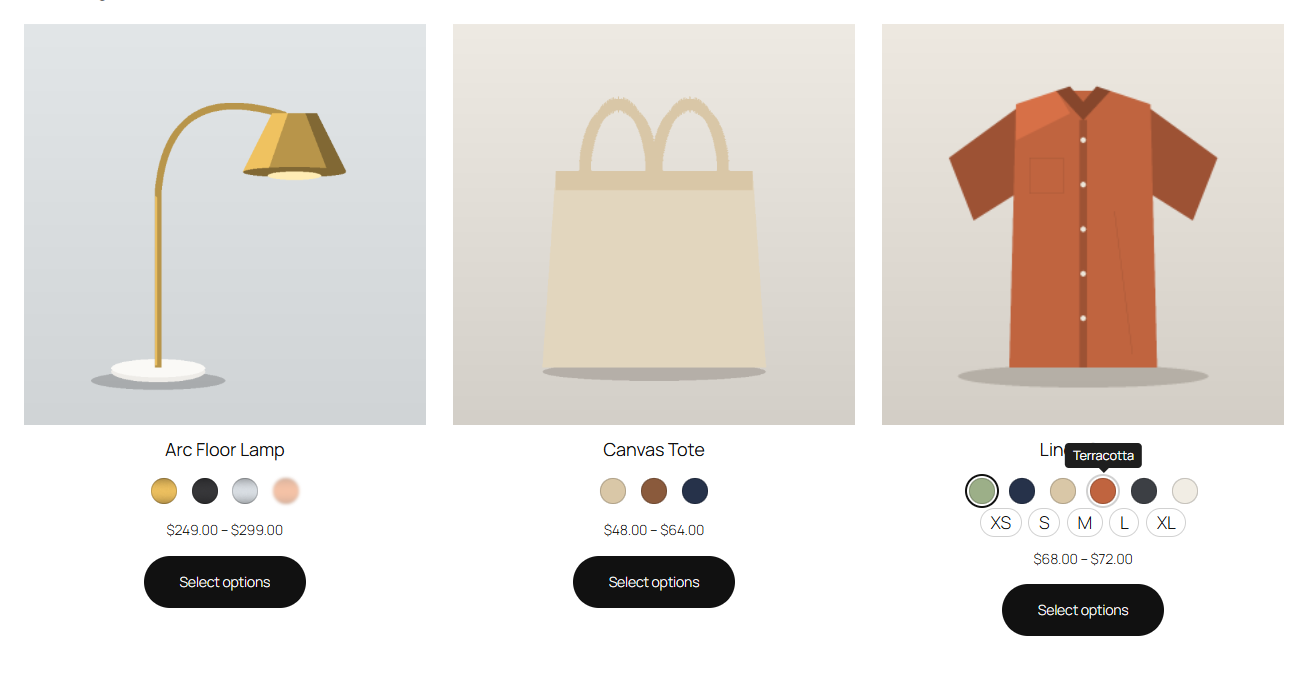
What customers can do
- Hover a swatch to see that variation's image in the product card. Moving away brings the chosen (or the product's own) image back.
- Choose a swatch to keep its image. Values that can't be bought with the other choices are crossed out, as on the product page.
- With every attribute chosen, the card's Select options button becomes Add to cart for that variation (see below).
- +3 more after the swatches leads to the product page when there are more values than the limit.
The swatches are the same radio groups as on the product page, so the keyboard and screen readers work the same way.
Settings
Under WooCommerce → Settings → Products → Swatches, in the Swatchline Pro group:
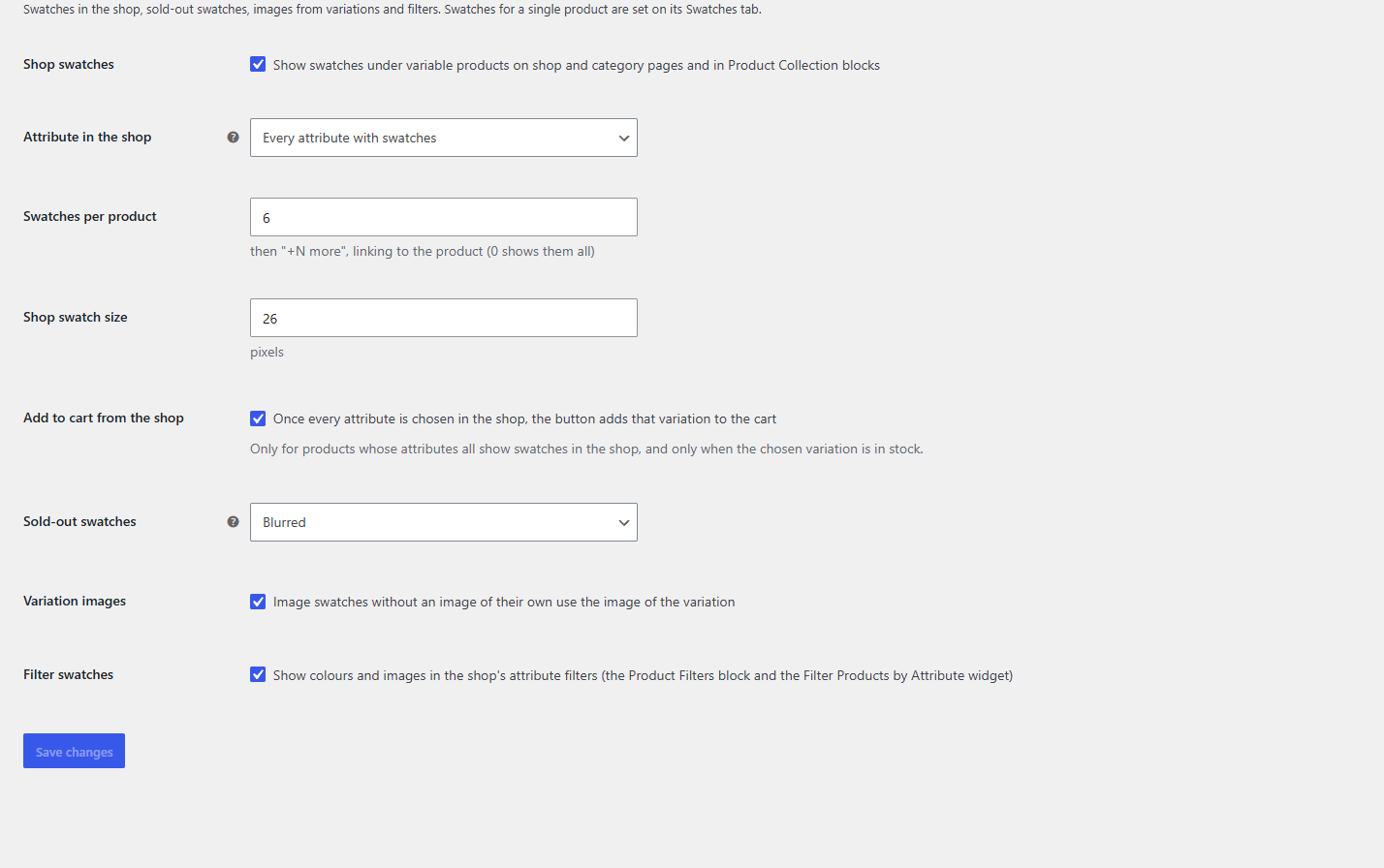
| Setting | What it does | Default |
|---|---|---|
| Shop swatches | Swatches under variable products in the shop | On |
| Attribute in the shop | The first attribute with swatches, every attribute with swatches, or a chosen attribute (a product without it shows its first) | The first |
| Swatches per product | How many values an attribute shows before "+N more" (0 shows them all) | 5 |
| Shop swatch size | 12 to 64 pixels | 26 |
| Add to cart from the shop | Whether a complete choice turns the button into Add to cart | On |
Add to cart from the shop
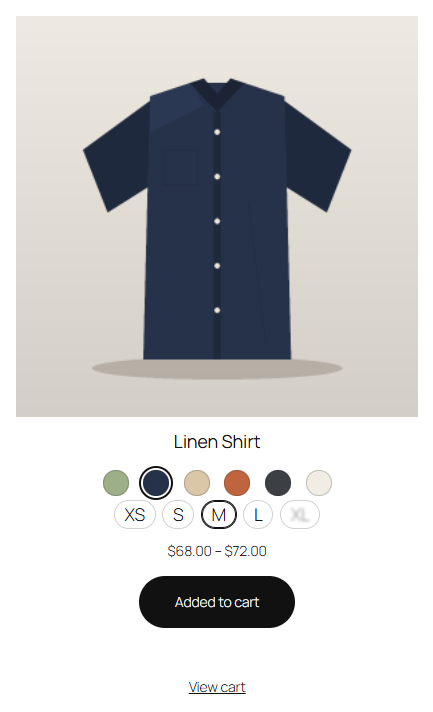
The card can add a variation only when the customer has chosen every one of the product's attributes in it:
- Set Attribute in the shop to Every attribute with swatches, so all of them show.
- Give every attribute the product uses for variations a swatch type (attributes left on Dropdown can't be chosen in the shop).
When the chosen combination is in stock, the button reads Add to cart. Clicking it adds that variation with WooCommerce's own checks (stock, purchase limits, other plugins' rules) and updates the mini cart; a View cart link appears next to it. If WooCommerce refuses (say, the last one just sold), the customer is taken to the product page, where WooCommerce explains why. If your store sends customers to the cart after adding (Redirect to the cart page after successful addition), the shop does that too.
Where the swatches go
- Classic shop pages: under the product's title and price, before its button.
- Product Collection blocks: before the product's price. A product template without the Price block shows them after the product instead.
Simple, grouped and external products, and variable products without any attribute with swatches, are unchanged.