
Per-product swatches
The product's Swatches tab: a swatch type, colours, second colours and images for one product, also for custom attributes.
Note
This is part of Swatchline Pro.
Swatchline's colours and images belong to an attribute's values, so they're the same on every product. Swatchline Pro adds a Swatches tab to variable products for the exceptions: a "Natural" that's really oatmeal on this sweater, a size chart that reads better as buttons here, or a custom attribute that only this product has.
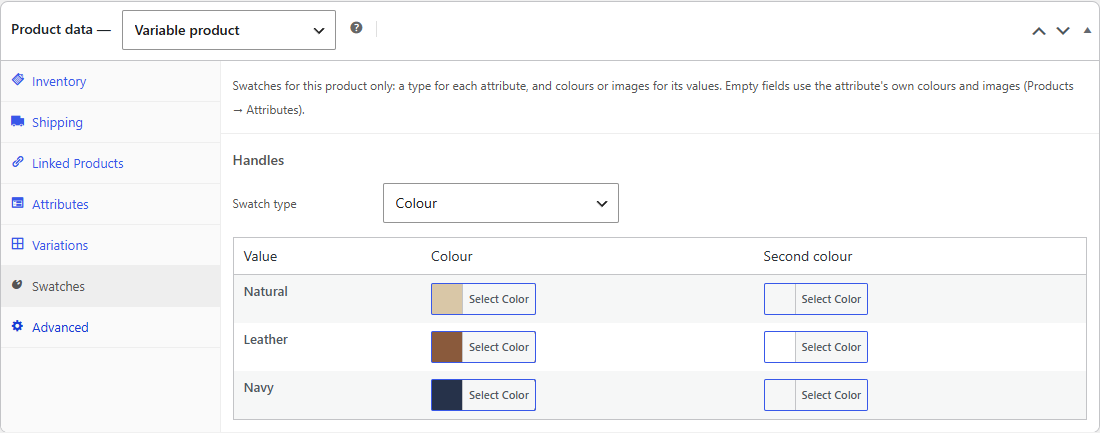
Set swatches for one product
- Edit a variable product and open the Swatches tab in the Product data box.
- Each attribute used for variations has a box. Choose its Swatch type for this product, or leave The attribute's type to keep the global one.
- For Colour, give values their Colour (and a Second colour for a split swatch). For Image, choose an Image. Empty fields use the value's own colour or image, shown next to its name.
- Click Update.
The columns follow the type: colours for Colour, images for Image and Variation image, none for Label and Dropdown.
Custom attributes
Attributes typed on the product's Attributes tab have no terms, so Swatchline alone can only show them as labels. On the Swatches tab they can be Colour or Image swatches with their own colours and images, like global attributes.
New attributes
The tab lists the attributes the product had when the page loaded. After adding attributes on the Attributes tab, update the product, then set their swatches.
Without Swatchline Pro
The per-product swatches are stored with the product and kept if Swatchline Pro is deactivated, but Swatchline alone doesn't use them: the product shows the attributes' own swatches (or dropdowns for custom attributes) until Pro is back.