
Filter swatches
Colours and images in the Product Filters block and the classic Filter Products by Attribute widget.
Note
This is part of Swatchline Pro.
Customers filtering the shop by colour shouldn't have to read the colours. With Filter swatches on (the default, under WooCommerce → Settings → Products → Swatches), attributes with Colour or Image swatches show them in the shop's filters.
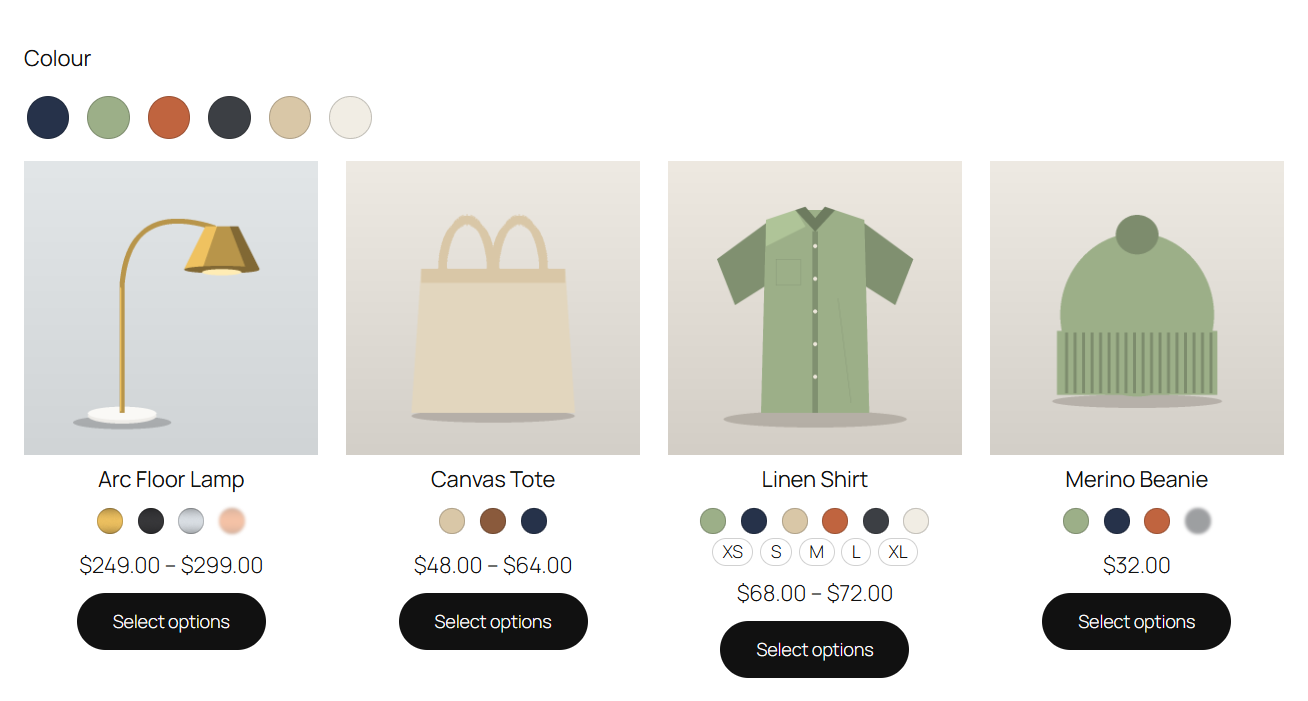
The Product Filters block (block themes)
In WooCommerce's Product Filters block, add an Attribute filter for an attribute with Colour or Image swatches. Its values show their swatch, in both of the filter's styles:
- Chips: round colour or image chips with the name.
- Checkbox list: a small swatch before each name.
WooCommerce draws these itself (it can show swatches for values that have them), so they match the block's look, counts and behaviour. Swatchline Pro gives the block the colours and images from Swatchline. Two-colour values show their first colour here.
The Filter Products by Attribute widget (classic themes)
In WooCommerce's Filter Products by Attribute widget, set to List, each value gets its swatch before the name. The dropdown display stays as it is.
Turning it off
Untick Filter swatches to keep the filters text-only.