
Shipping with tracking
Add a carrier and a tracking number for each order as you mark it shipped, and where customers and your team see them.
Note
This is part of Packboard Pro.
With Packboard Pro, Mark shipped… asks for the carrier and each parcel's tracking number before it completes the orders. Your customers get the tracking link with their "Completed order" email.
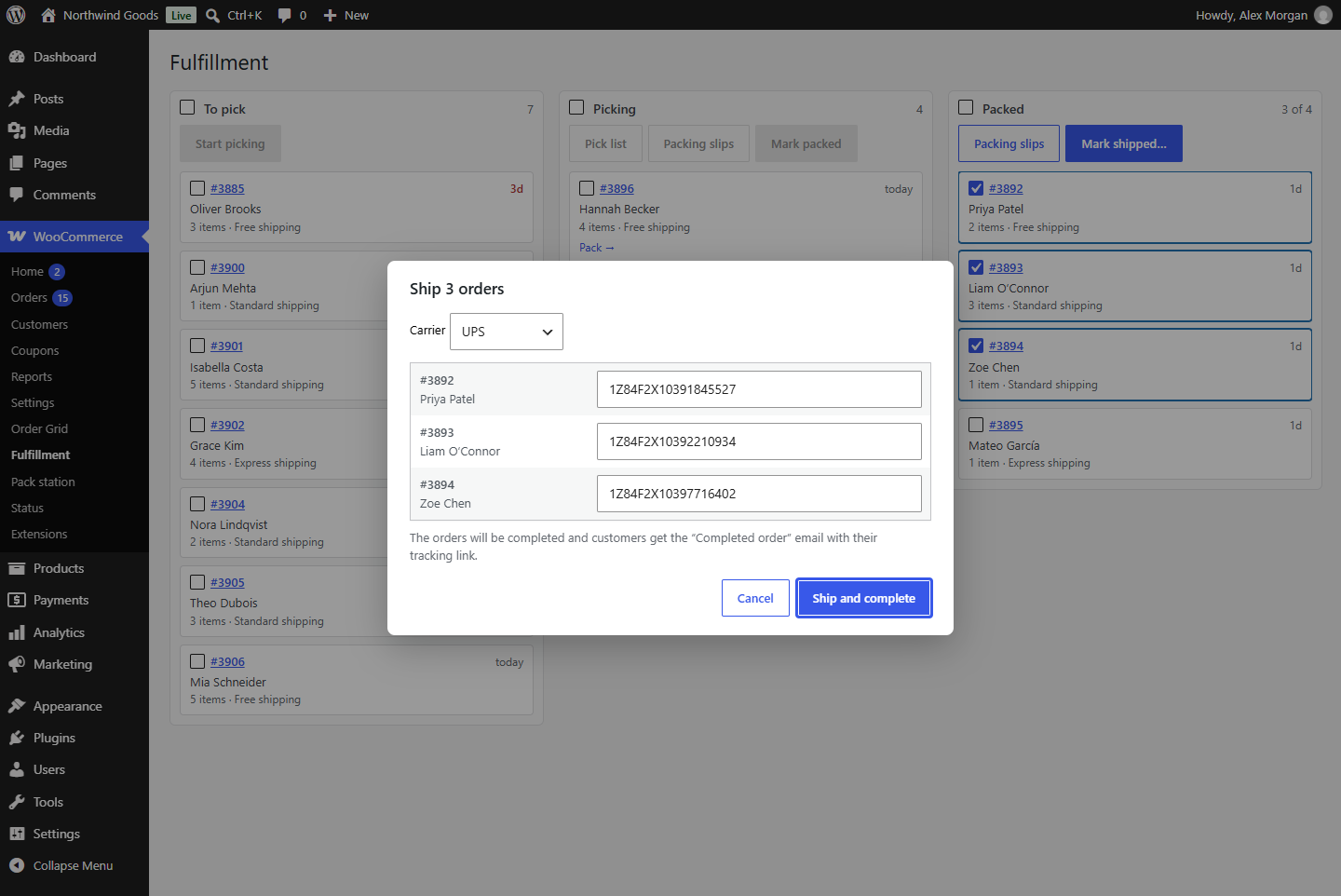
Shipping a batch
- On WooCommerce → Fulfillment, select the orders in Packed.
- Click Mark shipped….
- Choose the Carrier. The one you used last is already selected.
- Scan or type each order's tracking number. Tracking is optional: leave a field empty for an order you deliver yourself or send untracked.
- Click Ship and complete.
With a barcode scanner, scan the first label: the cursor moves to the next order, and after the last one to Ship and complete. A scan never ships the batch by itself; you always click (or press Enter on) the button.
Each order is then completed as described in Shipping orders, and its tracking is saved first, so it's in the email.
Note
One carrier applies to the whole batch. If a batch goes out with two carriers, ship it in two goes: select the orders for one carrier, ship, then the rest.
Carriers
The list has USPS, UPS, FedEx, DHL Express, Royal Mail, Canada Post and Australia Post, each with a link to its tracking page, and Other for anything else. With Other, the number is saved and shown, without a link.
If WooCommerce's Order Fulfillments feature is on, the list is WooCommerce's own, with many more carriers; see WooCommerce Order Fulfillments. Your developer can add carriers of your own; see Carriers and order numbers.
What the customer sees
- The "Completed order" email has a Track your shipment section with the carrier and the tracking number, linked to the carrier's tracking page. The plain-text version of the email has it too.
- Their account: on My account → Orders, the order shows Shipment tracking under the order details.
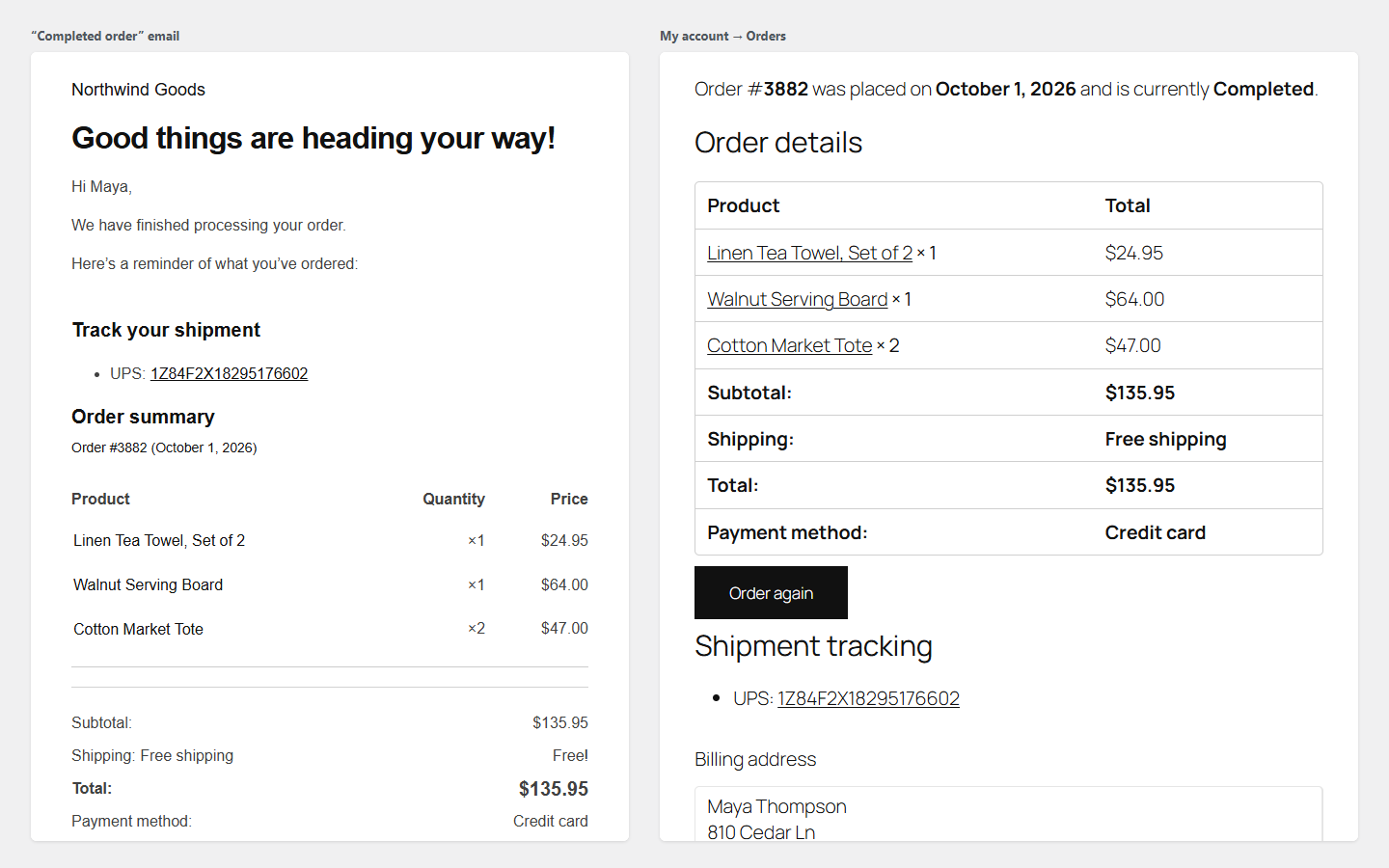
Only the Completed order email gets the tracking block: shipping is what completes the order. Admin emails don't.
What you see
On the order's screen in WooCommerce, a Shipment tracking box in the sidebar lists each tracking number with its carrier and link. Until the order ships, it says there's no tracking yet. Every shipment also adds an order note, such as "Tracking added: UPS 1Z84F2X10391845527".
Fixing a tracking number
Tracking is saved when the order ships.
- With WooCommerce Order Fulfillments on, edit the shipment in WooCommerce's Fulfillments panel on the order screen.
- Otherwise, set the order back to Processing in WooCommerce (it returns to the board in To pick), move it to Packed and ship it again with the right number. The order then lists both numbers, and the customer gets a second Completed order email with both; tell them which one is right.