
Shipping orders
What Mark shipped does: the confirmation, the completed order, the customer's email, and how to undo it.
When the parcels are ready to go, ship them from the Packed column.
- Select the orders in Packed.
- Click Mark shipped….
- Check the list of orders in the dialog, then click Ship and complete.
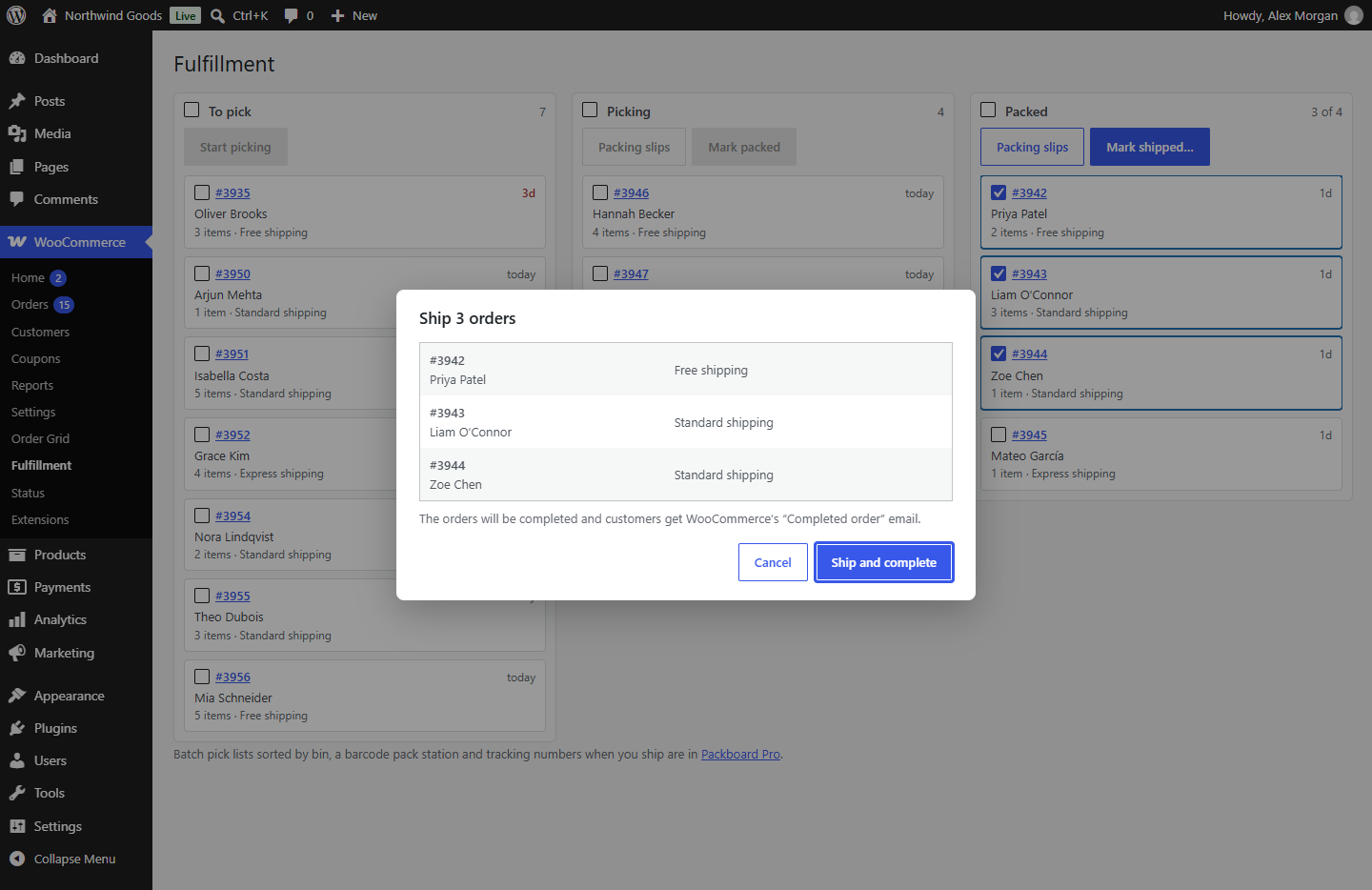
Click Cancel or press Esc to close the dialog without shipping anything.
What happens to each order
- Its status changes to Completed, with the order note "Shipped via Fulfillment board."
- Packboard records the date and time it shipped.
- WooCommerce sends the customer its Completed order email, as it does whenever an order is completed. Its wording is set under WooCommerce → Settings → Emails → Completed order.
- The order leaves the board.
If an order can't be shipped, for example because someone cancelled it in another tab, it stays where it is and the board tells you which orders weren't moved.
Undoing a shipment
Open the order in WooCommerce and set its status back to Processing. It returns to the board in To pick. WooCommerce doesn't send the customer anything for that change.
Tracking numbers
Packboard completes orders without tracking. To add a carrier and a tracking number for each parcel as you ship, with the tracking link in the customer's email and account, see Shipping with tracking (Packboard Pro).