
The fulfillment board
How paid orders move across To pick, Picking and Packed, selecting batches, dragging cards and spotting overdue orders.
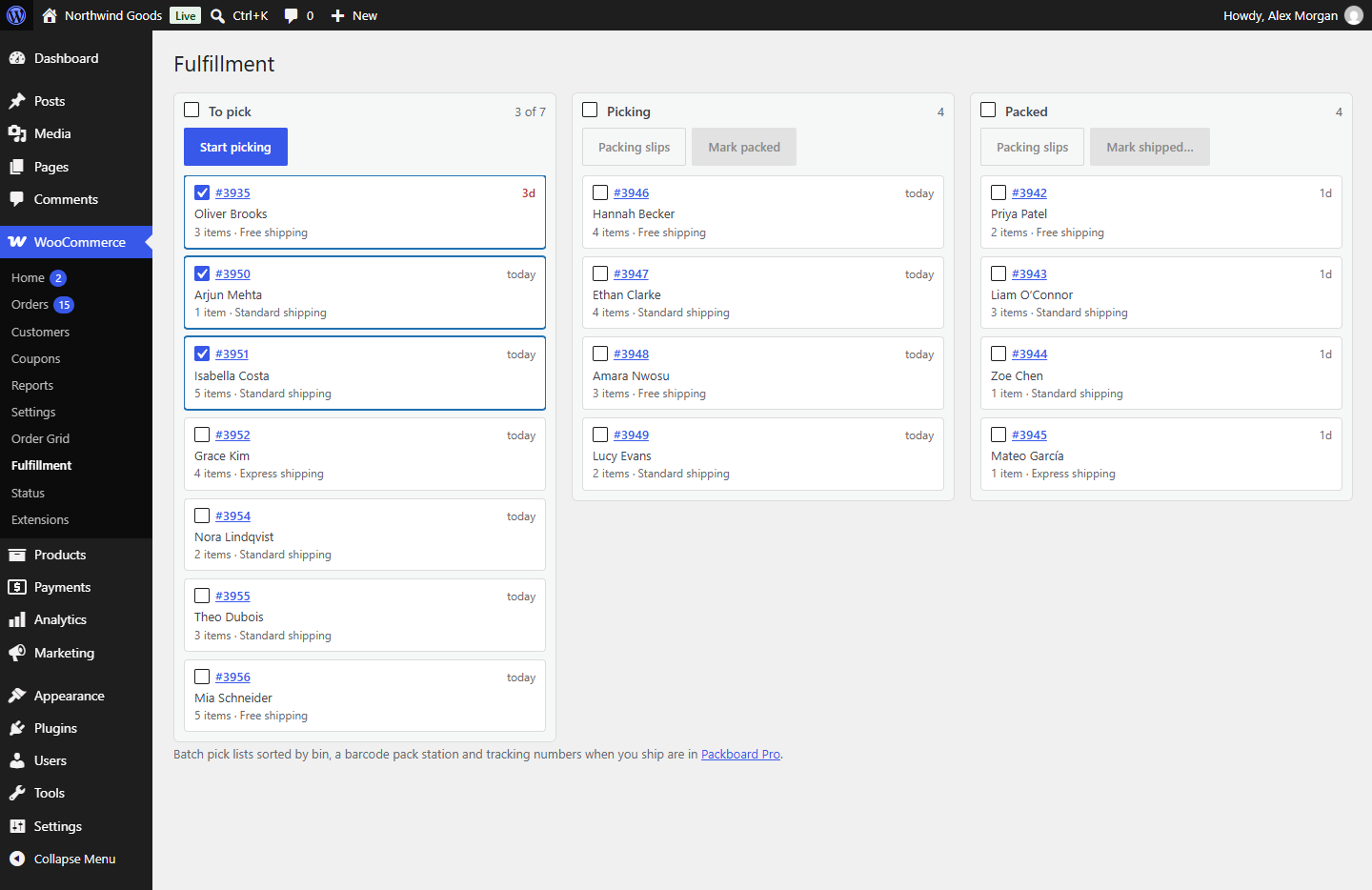
The board is WooCommerce → Fulfillment. It shows every order that's paid and waiting to go out, and where each one is in your process.
Which orders are on it
Every order with the status Processing: paid, or set to Processing by hand. Orders that are pending payment, on hold, completed, cancelled or refunded aren't on the board.
A new Processing order starts in To pick. The board doesn't change the order's status while it moves through the stages, so WooCommerce, your reports, emails and other plugins keep seeing a normal Processing order until you mark it shipped.
| Column | Means |
|---|---|
| To pick | Paid, nobody has started on it yet. |
| Picking | Someone is collecting the items. |
| Packed | In the box, ready to hand to the carrier. |
The last step, Shipped, isn't a column: shipping completes the order, so it leaves the board. See Shipping orders.
Reading a card
Each card shows:
- the order number, which opens the order in WooCommerce,
- how long ago the order was placed, in calendar days: today, 1d for yesterday, 2d for the day before, and so on,
- the customer's name,
- the number of items and the shipping method.
Orders waiting 3 days or more have their age in bold red, so the ones that are slipping stand out.
Cards are sorted oldest first in every column, so the queue is worked first in, first out. Plugins can change that: Slotline, for example, puts orders with a delivery date first, soonest first, and shows the date and slot on the card.
Moving orders
With the buttons. Tick the cards you want (or the box next to a column's name to select the whole column), then click a button over that column:
| Column | Buttons |
|---|---|
| To pick | Start picking moves the selection to Picking. |
| Picking | Packing slips prints them; Mark packed moves them to Packed. |
| Packed | Packing slips prints them; Mark shipped… ships them. |
The count next to the column name shows how many are selected, for example "3 of 12".
By dragging. Drag a card onto another column. If the card is selected, the other selected cards in its column go with it. You can drag in any direction, for example back from Packed to Picking when something is missing.
Every move adds a private note to the order, such as "Fulfillment stage: Packed.", so the order's history shows who moved it and when.
When an order changes outside the board
The board always follows the order's status:
- An order you set to On hold, Cancelled or Refunded in WooCommerce leaves the board.
- An order that goes back to Processing returns in To pick, even if it had been completed before.
Very busy stores
The board shows the 500 oldest Processing orders. If there are more, a notice at the top says so; the newer ones appear as you ship the older ones.
Columns from other plugins
Other plugins can add a column before To pick for orders that aren't ready yet. With Preorderline, pre-orders wait in a Pre-ordered column with their release date; Release now, or dragging a card into To pick, moves the order into the queue. See Other Extendiment plugins.