
The order grid
Filter, search and select orders on one fast screen, and change their status inline or in bulk.
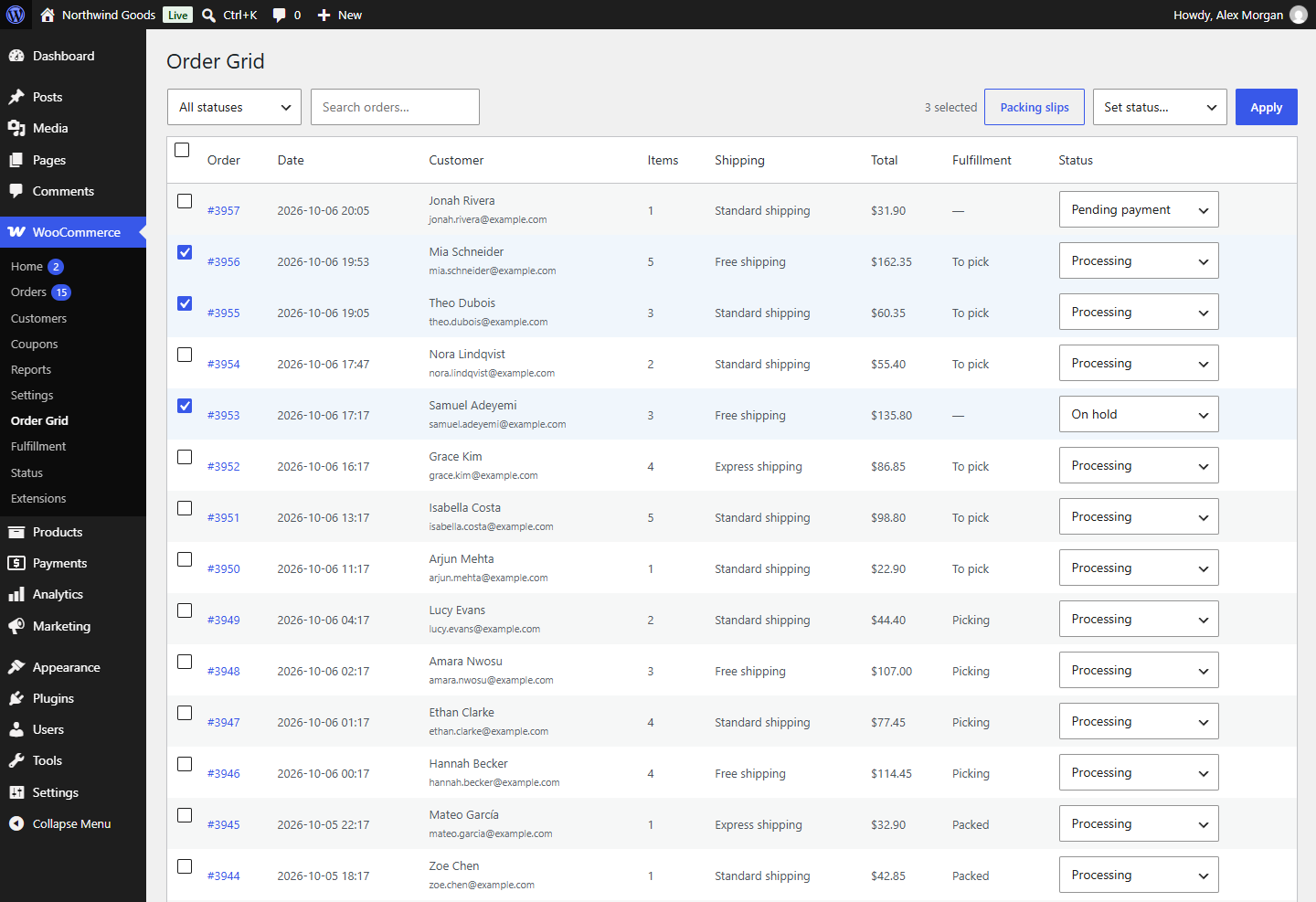
WooCommerce → Order Grid is a quick order list for everyday admin: find orders, see where they are, and change their status without opening each one.
Finding orders
- Status: the first drop-down shows one status at a time, or all of them.
- Search: type a customer's name, email address or an order number. The list updates as you type.
The grid shows 50 orders per page, newest first; use the arrows at the bottom to page through.
Each row shows the order number (which opens the order), the date, the customer and their email, the number of items, the shipping method, the total, the Fulfillment stage for orders on the board (To pick, Picking, Packed or Shipped) and the status.
Changing a status
One order: pick a new status in the order's Status drop-down. It's saved straight away.
Several orders:
- Tick their boxes. To select a range, tick one, then hold Shift and tick another; everything between is selected too. The box in the header selects the whole page.
- Choose the new status in Set status… at the top.
- Click Apply.
Status changes made here are the same as in WooCommerce's own order screen: the customer gets whatever email WooCommerce sends for that status (for example the "Completed order" email), stock is adjusted for cancellations, and the order note says "Status changed via Order Grid."
If an order can't be changed, the grid tells you which one and leaves the others changed.
Tip
Use the grid for statuses, and the board for fulfillment. Setting an order to Completed in the grid completes it without recording a shipping date; Mark shipped on the board records both.
Printing
Select orders and click Packing slips to print a slip for each; see Packing slips.