
Packing slips
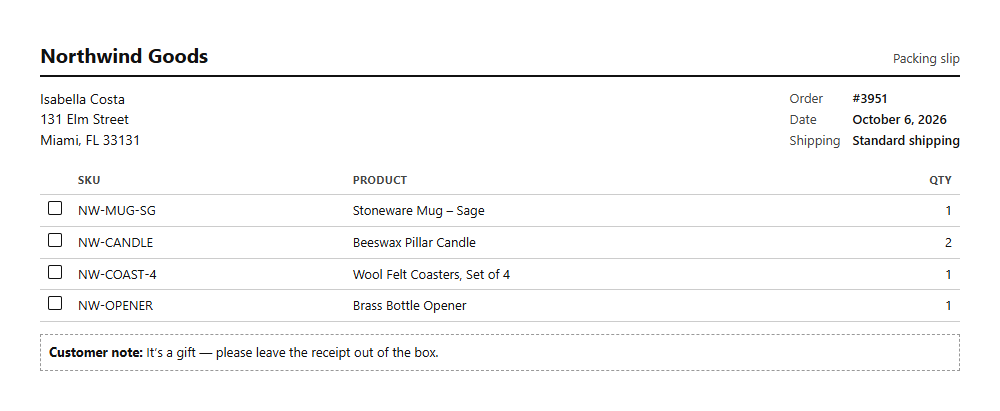
Print a packing slip per order, from the board or the order grid, with the address, items and the customer's note.
A packing slip goes in the box, or on the packing bench, so whoever packs the order can check every item against it.
Printing them
- From the board: select orders in Picking or Packed and click Packing slips.
- From the order grid: select any orders, in any status, and click Packing slips.
The slips open in a new browser tab, one order per printed page. Click Print at the top (or use your browser's print command) and choose your printer. The Print button itself isn't printed.
Note
If nothing opens, your browser blocked the new tab. Allow pop-ups for your store's admin and click the button again.
What's on a slip
- Your store name at the top.
- The shipping address (or the billing address when the order has no shipping address).
- The order number, the date it was placed and the shipping method.
- Each item still to ship, with its SKU, name and quantity, and a tick box to check it off while packing.
- The customer's note from checkout, if they left one, in a box at the bottom.
Items that were refunded are left off, and a partly refunded line shows only the quantity still to ship. Prices aren't shown, so the slip can go in a gift parcel.
Paper and layout
Slips are plain black and white and fit A4 and US Letter. Your browser's print dialog sets the paper size, margins and whether headers and footers (the page address and date) are printed; turn those off for a cleaner slip.