
The pack station
Check every item into the box with a barcode scanner, catch wrong or missing items, and mark the order packed.
Note
This is part of Packboard Pro.
WooCommerce → Pack station is a screen for the packing bench. Scan the order, then every item as it goes into the box. A wrong product or one too many is caught before the parcel is sealed.
What you need
- A barcode scanner that types into the browser like a keyboard. Nearly every USB and Bluetooth scanner does. A keyboard works too.
- Products with a SKU, or a barcode in WooCommerce's GTIN, UPC, EAN or ISBN field on the Inventory tab (WooCommerce 9.2 and later). Scans match either, ignoring upper and lower case.
Packing an order
- Pick the order. Scan the order number from its packing slip or pick list (with or without the
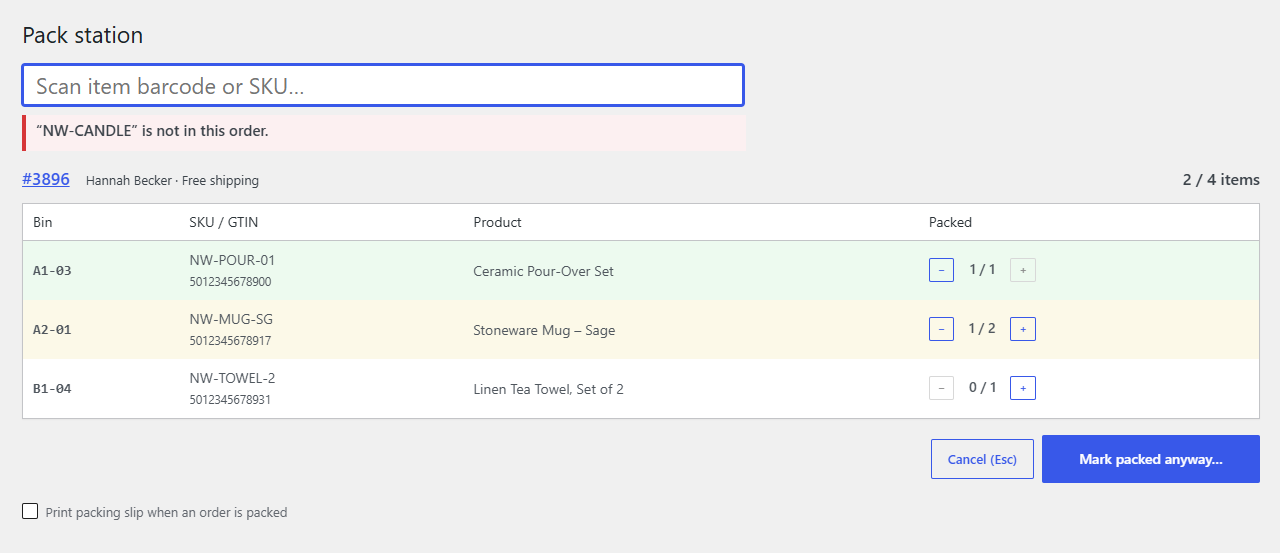
#), or click it in Waiting to be packed, the list of orders in Picking. On the board, each card in Picking has a Pack → link that opens it here too. - Scan each item as it goes in the box. Each scan counts one, with a short beep, and the line turns yellow, then green when it's complete. The total at the top shows how far you are.
- Finish. When every line is green, press Enter (scan nothing) or click Mark packed. The order moves to Packed on the board and the screen is ready for the next order.
The scan field stays focused the whole time, so you can keep your hands on the scanner.
When something's wrong
| You see | Means |
|---|---|
| "“X” is not in this order." | The scanned product isn't in this order. Keep it out of the box. |
| "All of “Product” are already packed." | That's one too many. |
| "Order #123 not found." | No order with that number. |
| "Order #123 is Completed, not processing." | Only Processing orders can be packed: this one has shipped, or is on hold or cancelled. |
Each comes with a low error tone and a red message.
Without a scan
- The + and − buttons on a line change its count by hand, for an item without a barcode or a label that won't scan.
- Mark packed anyway… finishes an order that isn't fully scanned, after asking you to confirm, for example when an item is out of stock and you're sending the rest.
- Cancel (Esc) leaves the order as it was, still in Picking.
Printing the packing slip
Tick Print packing slip when an order is packed at the bottom, and the slip for each order opens to print as you mark it packed. The setting is remembered on that computer.
Custom order numbers
If your store uses a plugin that changes order numbers (for example to SHOP-1042), scanning that number needs a small piece of code to find the order; see Carriers and order numbers.