
Variable products
How the stock line follows the variation a shopper picks.
On a variable product, WooCommerce shows a stock line only once the shopper has picked all the options, and it describes that one variation. Stockline changes that line the same way it changes a simple product's.
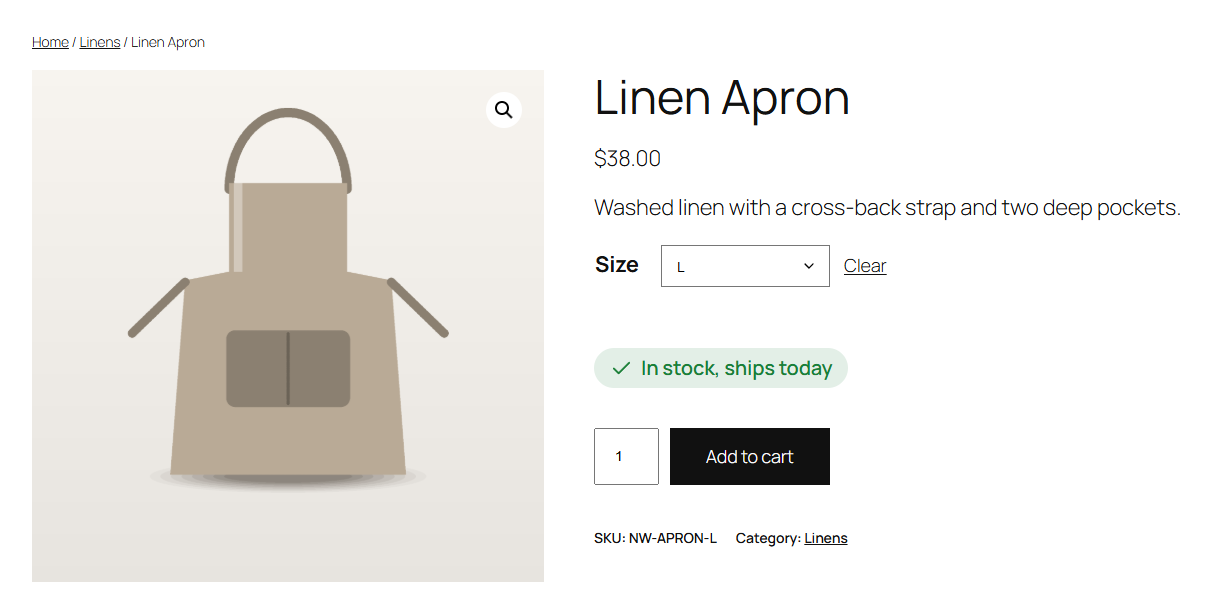
Each variation has its own state
Each variation is put in a state from its own stock: one size can be in stock, another low and a third sold out. When the shopper switches options, the stock line switches with them, with the message, icon and colour of the new variation's state.
{qty} is the picked variation's quantity. If a variation doesn't track its own quantity but the product does, WooCommerce uses the product's quantity for it, and so does Stockline.
Before an option is picked
Until every option is chosen, WooCommerce shows no stock line for a variable product, and neither does Stockline. Stockline doesn't change the option lists themselves.
Large numbers of variations
With many variations (more than 30 by default), WooCommerce loads each variation's details only when it's picked. Stockline's colours are included in the page up front, so the stock line looks right however the variation was loaded.
A message for one variation
Stockline's messages are store-wide, so every variation in the same state shows the same message, with its own quantity. To give a single variation its own message, such as "Size S is back in December", use Stockline Pro: see Per-product and per-variation messages.