Store-wide messages
The four stock states, how Stockline decides which one a product is in, and what happens when a message is left empty.
Stockline gives your store one message for each stock state. You set them under WooCommerce → Settings → Products → Stock messages, and every product page uses them.
The four states
Stockline works out a product's state from its WooCommerce stock settings, in this order. The first one that fits wins.
| State | When | Example message |
|---|---|---|
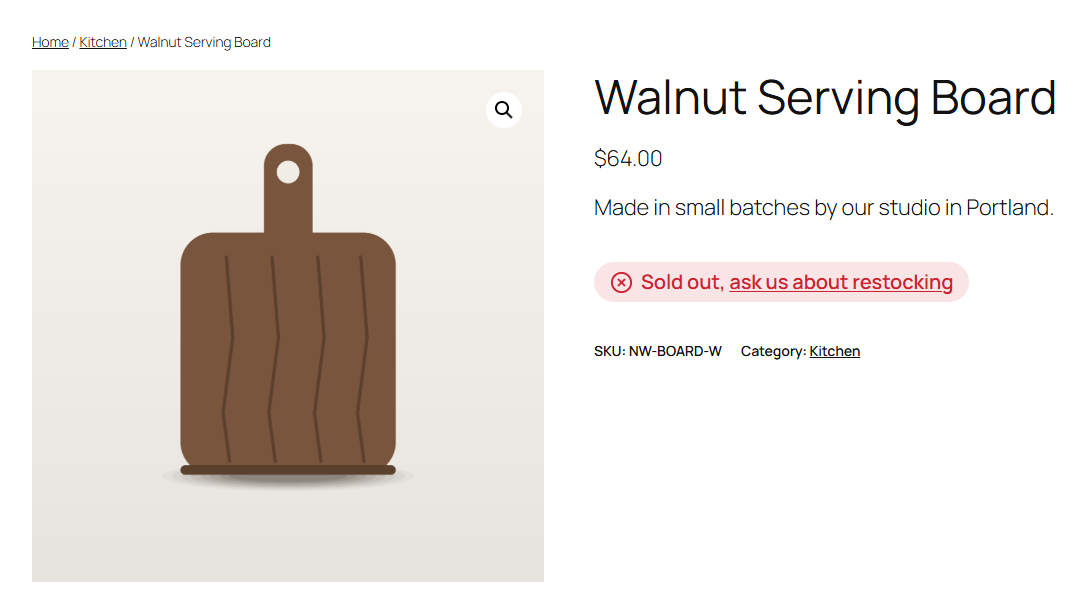
| Out of stock | The product can't be bought: stock status "Out of stock", or a tracked quantity at or below the out of stock threshold with backorders off. | Sold out, back soon |
| On backorder | The product can be bought but has no stock: backorders allowed and the quantity at zero or below, or stock status "On backorder". | Made to order, ships in 2–3 weeks |
| Low stock | The product tracks its quantity, and it's at or below the low stock threshold. | Only {qty} left, order soon |
| In stock | Everything else. | In stock, ships today |
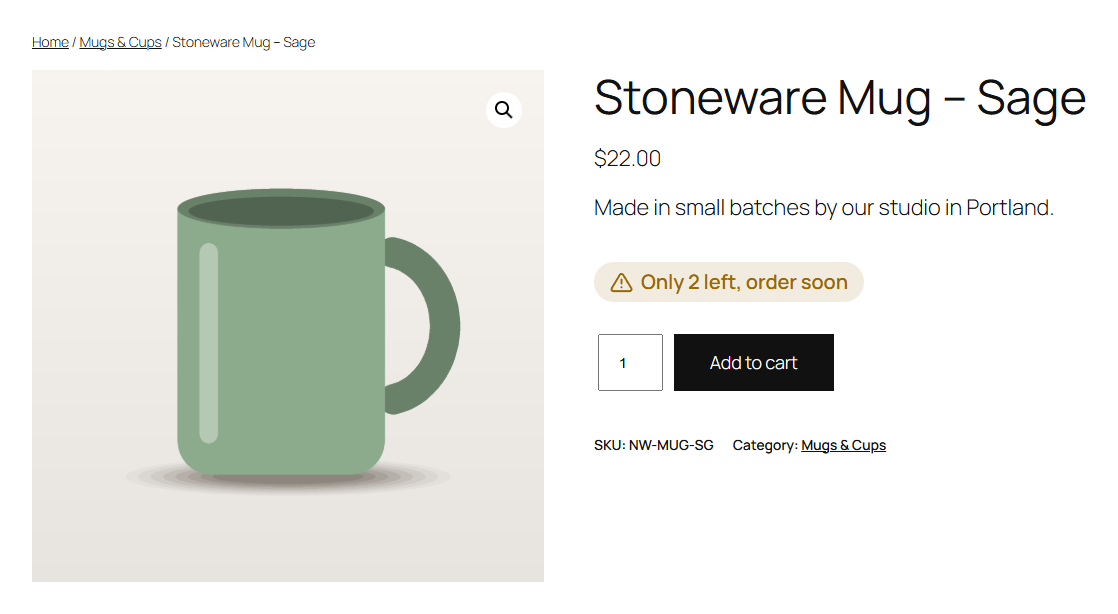
The thresholds are WooCommerce's own, under WooCommerce → Settings → Products → Inventory: Low stock threshold and Out of stock threshold. A product can have its own low stock threshold on its Inventory tab, and Stockline uses that one when it's set, just as WooCommerce does for its "Only 2 left in stock" text.
Note
Stockline only changes what shoppers read. Whether a product can be bought, and how much stock it has, is still decided by WooCommerce.
Writing good messages
A stock message is most useful when it answers the shopper's next question:
- Out of stock: when will it be back, or what can they do instead? "Sold out, back in March", or
Sold out, <a href="/contact">ask us about restocking</a>for a link to your contact page. - On backorder: how long will they wait? "Made to order, ships in 2–3 weeks".
- Low stock: a nudge, with the real number. "Only {qty} left, order soon".
- In stock: reassurance about delivery. "In stock, ships today".
Messages can contain bold text and links, and placeholders for the quantity left and the product name. See Placeholders.
Empty messages
Leave a message empty and WooCommerce's own text is shown for that state ("Out of stock", "Available on backorder", "Only 2 left in stock" and so on), still with the state's icon and colour. That's a quick way to add just a little colour without rewriting anything.
One case is different: WooCommerce shows no stock line at all for products that are in stock and don't track their quantity. With an empty In stock message, Stockline leaves those alone. Enter an In stock message and it's shown on those products too.
The stock quantity format
WooCommerce's Stock display format setting (Inventory settings) decides whether its own text includes the quantity: "12 in stock", "Only 2 left in stock" or just "In stock". It only applies to WooCommerce's text, the one shown when a message is empty. Your own messages show exactly what you write, and {qty} always shows the number.
States from other plugins
Other plugins can add states of their own. Preorderline, for example, adds Pre-order, with a {date} placeholder for the release date. Each added state appears on the Stock messages screen after the four built-in ones, with its own message, icon, colour and preview, and works the same way.
A message you set for an added state is one text for every product in that state: it replaces the text the other plugin shows, including any message set on the product in that plugin (Preorderline's per-product pre-order message, for example). Leave it empty to keep each product's own text, with Stockline's icon and colour.